Bryntum Calendar vs Schedule-X

If you're choosing between Bryntum Calendar and Schedule-X, you're deciding whether your application needs a commercial calendar with resource scheduling, drag-and-drop editing, export, and AI support built in or an MIT-licensed calendar core with paid Premium add-ons.
Start with these questions:
- Does the application need resource scheduling?
- Does the team need drag and drop editing without a premium extension?
- Does an MIT licensed core matter more than built-in export and AI support?
This comparison uses these criteria:
- Installation and setup
- Licensing and cost
- Calendar views
- Resource scheduling
- Export support
- Framework and TypeScript support
- AI support
Bryntum Calendar vs Schedule-X: commercial product vs open-source core
The table below covers the criteria most relevant to a production integration decision.
| Feature | Bryntum Calendar | Schedule-X |
|---|---|---|
| License | Commercial | MIT (core) / Paid (Premium add-ons) |
| Free tier | Trial only | MIT (no watermark) |
| View types | 11 | 6 (free core) |
| Day / Week / Month views | ✔️ | ✔️ |
| Resource scheduling | ✔️ | Premium add-on |
| Export (Excel / ICS / print) | ✔️ (client-side) | ICS import plugin only |
| Built-in localization | 45 locales | 37 locales via translations package |
| Drag-and-drop | ✔️ | Premium plugin |
| Undo / redo | ✔️ | ❌ |
| Multiple instances per page | ✔️ | ✔️ |
| React / Angular / Vue wrappers | ✔️ | ✔️ (+ Svelte, Preact) |
| TypeScript | ✔️ | ✔️ |
| MCP server | ✔️ | ❌ |
| Claude Code skill | ✔️ | ❌ |
| Built-in AI assistant | Experimental feature | ❌ |
Bryntum Calendar
Bryntum Calendar is a commercial JavaScript calendar component with 11 view types. Standard views cover day, week, month, year, agenda, list, and multi-day. Resource views cover resource day, resource week, resource month, and scheduler resource. Resources (people, rooms, and equipment) appear as color-coded lanes in the resource views, and the same resource data populates filters in a configurable sidebar. The component sits on Bryntum Grid, so sorting, filtering, and grouping carry over without extra configuration.
Installing Bryntum Calendar
The trial package is available on the public npm registry without authentication:
npm install @bryntum/calendar@npm:@bryntum/calendar-trial@7.2.4
This minimal team calendar shows five team members across a work week. The container sets min-height: 100vh to fill the viewport:
<!-- index.html -->
<style>
  html, body { margin: 0; padding: 0; }
  #app { padding: 1rem; background: #f8f9fa; min-height: 100vh; }
</style>
<div id="app"></div>
import '@bryntum/calendar/fontawesome/css/fontawesome.css';
import '@bryntum/calendar/fontawesome/css/solid.css';
import '@bryntum/calendar/calendar.css';
import '@bryntum/calendar/svalbard-light.css';
import { Calendar } from '@bryntum/calendar';

new Calendar({
  appendTo : 'app',
  date     : '2025-10-12',
  height   : 700,
  mode     : 'week',

  modes : {
    week  : { showAllDayHeader : true },
    month : true,
    day   : true
  },

  resources : [
    { id : 'bryntum', name : 'Bryntum team',     eventColor : 'blue' },
    { id : 'hotel',   name : 'Hotel Park',       eventColor : 'orange' },
    { id : 'michael', name : 'Michael Johnson', eventColor : 'deep-orange' }
  ],

  events : [
    { id : 1, name : 'Hackathon 2025',                       startDate : '2025-10-11T14:00:00', endDate : '2025-10-18T12:00:00', allDay : true, resourceId : 'bryntum', eventColor : 'green' },
    { id : 2, name : 'Breakfast',                            startDate : '2025-10-12T09:00:00', endDate : '2025-10-12T10:00:00', resourceId : 'hotel' },
    { id : 3, name : 'Team Scrum',                           startDate : '2025-10-12T10:00:00', endDate : '2025-10-12T12:00:00', resourceId : 'bryntum' },
    { id : 4, name : 'Scheduler Grid introduction + review', startDate : '2025-10-12T12:00:00', endDate : '2025-10-12T14:00:00', resourceId : 'bryntum' }
  ]
});
Three CSS imports are required in order: FontAwesome icons, the structural calendar.css, and a theme file. Bryntum ships ten themes across five light/dark pairs, all switchable at runtime via DomHelper.setTheme().
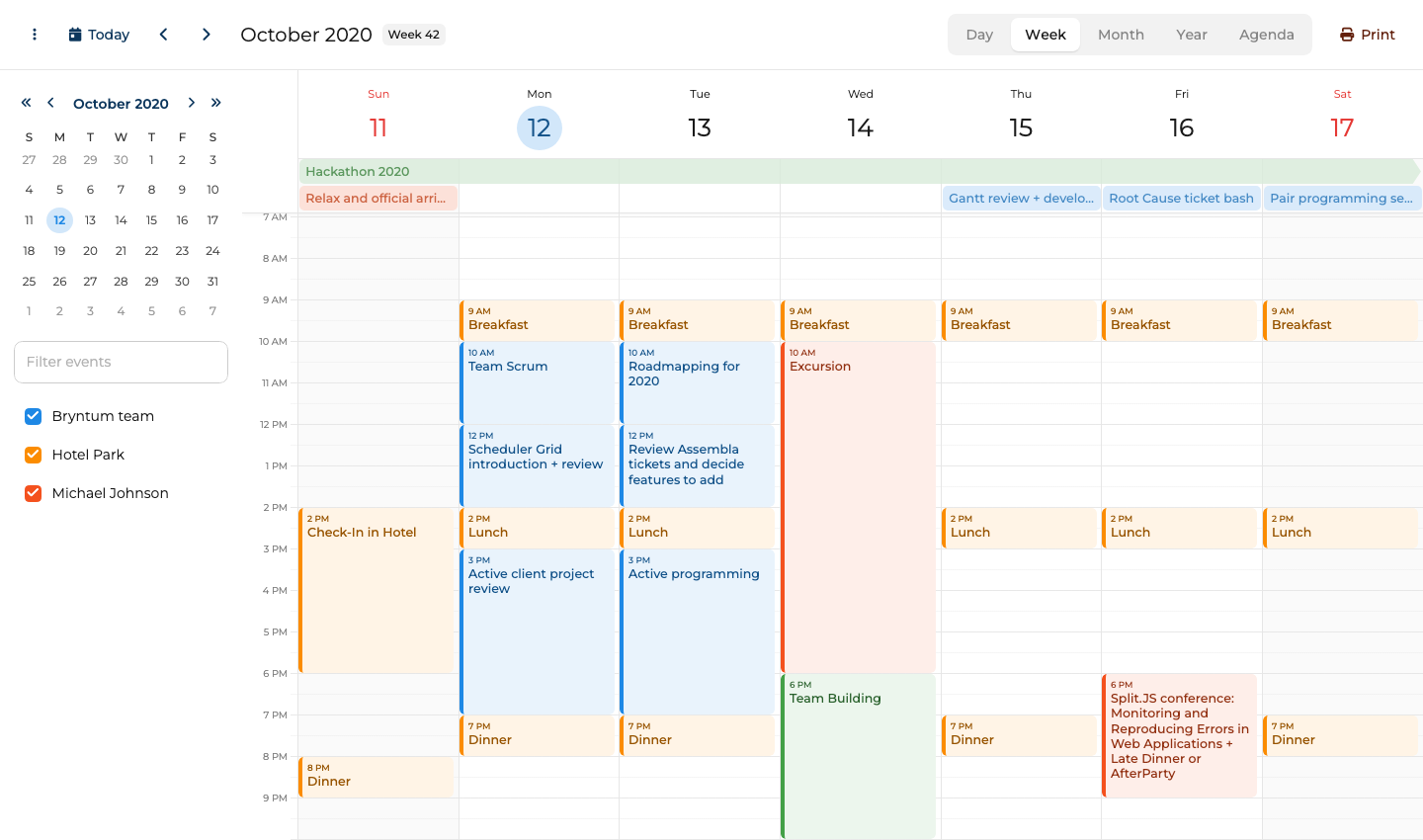
Resource scheduling, export, and undo/redo in the base license
The 11 view types include resource scheduling without a paid add-on. The base license also includes:
- Recurring events and all-day events
- Drag-and-drop across views
- Undo/redo
- Client-side export to Excel, ICS, and print
The built-in localization covers 45 languages. The theming system is consistent across the Bryntum product suite (Gantt, Scheduler, Grid, Task Board), so mixing components on the same page requires no visual reconciliation.
Bryntum Calendar: bundle size, trial watermark, and API surface
The trial watermark persists during evaluation, which complicates early stakeholder demos. The uncompressed bundle exceeds 4 MB. Applications where initial load time is critical should measure this impact early. The API surface (Calendar, ResourceStore, EventStore, and the view configuration layer) takes time to learn relative to a lighter alternative.
Bryntum Calendar pricing: perpetual license from $680 per developer
Per-developer licensing starts at $680 for a small team, with a $600-per-developer rate at volume. OEM licensing for SaaS applications requires a separate quote. All licenses are perpetual and include 12 months of updates.
TypeScript, live code examples, and React/Angular/Vue wrappers
TypeScript type definitions ship with the package. Documentation at bryntum.com includes live code examples with an in-browser editor covering all 11 view types.
Framework wrappers for React (@bryntum/calendar-react), Angular, and Vue 3 are published on the same version cycle as the core.
For runtime theme switching, load theme files with <link> tags marked for Bryntum theme detection and call DomHelper.setTheme(). Static themes can still be bundled in the normal build. Locale files for all 45 languages ship with the package; import the relevant file to activate a locale.
Coding agent support: MCP server, Claude Code skill, and AI assistant
Bryntum ships two complementary AI tools: the MCP server handles documentation retrieval, and the Claude Code skill adds judgment about common coding mistakes.
The MCP server (mcp.bryntum.com) exposes a search_bryntum_docs tool that returns version-specific documentation, source code examples, and API references for Calendar and the rest of the Bryntum suite. The command to register it in Claude Code:
claude mcp add --transport http bryntum https://mcp.bryntum.com
The Claude Code skill guides agents through mistakes that documentation retrieval alone misses: CSS import order, view configuration structure, and the correct dark mode pattern via DomHelper.setTheme(). An agent with both the MCP server and the skill produces working Calendar code with fewer correction cycles.
Bryntum also ships an experimental, disabled-by-default AI chat panel for Calendar that connects to Anthropic, OpenAI, or Google models. End users give natural language instructions such as "move the team standup to 10 AM every day this week" without touching the interface directly. This combination of structured retrieval, agent-level judgment, and end-user AI is unusual among JavaScript calendar libraries.
Use Bryntum Calendar when scheduling should not depend on add-ons
Bryntum Calendar is the right call when resource scheduling, export, localization, or undo/redo are production requirements. The full AI tooling stack makes it a better fit for teams building complex scheduling interfaces or using AI coding agents.
Schedule-X
Schedule-X is an open-source JavaScript calendar library with an MIT-licensed core. The free core includes six views: day, week, month grid, month agenda, week agenda, and list. The library is built on Preact and ships first-party framework integrations for React, Angular, Vue, Svelte, and Preact. A resource scheduler is available as a paid premium add-on (@sx-premium/resource-scheduler).
Bryntum Calendar covers production scheduling requirements in one product, while Schedule-X keeps the free core lighter and moves resource scheduling, drag and drop editing, and resize to premium packages.
Installing Schedule-X
The core package and default theme are on the public npm registry. Schedule-X v4 uses the Temporal API for all date handling, so the polyfill is required as a peer dependency:
npm install @schedule-x/calendar@4.5.0 @schedule-x/theme-default@4.5.0 temporal-polyfill@0.3.2
Import temporal-polyfill/global before creating dates or rendering the calendar:
<!-- index.html -->
<style>
  html, body { margin: 0; height: 100%; }
  #calendar-container { width: 100%; height: calc(100vh - 32px); }
</style>
<div id="calendar-container"></div>
import 'temporal-polyfill/global';
import {
  createCalendar,
  createViewDay,
  createViewWeek,
  createViewMonthGrid,
  createViewMonthAgenda
} from '@schedule-x/calendar';
import '@schedule-x/theme-default/dist/index.css';

const pd  = (str) => Temporal.PlainDate.from(str);
const zdt = (iso) => Temporal.ZonedDateTime.from(iso + '[UTC]');

const calendar = createCalendar({
  views        : [createViewWeek(), createViewDay(), createViewMonthGrid(), createViewMonthAgenda()],
  defaultView  : 'week',
  selectedDate : pd('2026-04-28'),
  weekOptions  : { gridHeight : 700, scrollToHour : 8 },

  events : [
    { id : '1', title : 'Team Standup',    start : zdt('2026-04-27T09:00:00+00:00'), end : zdt('2026-04-27T09:30:00+00:00') },
    { id : '2', title : 'Sprint Planning', start : zdt('2026-04-27T10:00:00+00:00'), end : zdt('2026-04-27T12:00:00+00:00') },
    { id : '3', title : 'API Workshop',    start : zdt('2026-04-28T11:00:00+00:00'), end : zdt('2026-04-28T13:00:00+00:00') }
  ]
});

calendar.render(document.getElementById('calendar-container'));
Two details matter for current Schedule-X. The selectedDate property accepts a Temporal.PlainDate object, not a plain string. Event start and end accept Temporal.ZonedDateTime or Temporal.PlainDate objects, not the plain date strings used in older v2-era examples. The view names are also literal names such as week, day, and month-grid, not the older-looking week-view style names that an AI assistant may guess.
When using Vite, add the following to vite.config.js to prevent multiple copies of Preact from entering the module graph:
export default defineConfig({
  optimizeDeps : {
    include : ['@schedule-x/calendar', 'preact', 'preact/hooks', 'preact/jsx-runtime']
  },
  resolve : {
    dedupe : ['preact', 'preact/hooks', 'preact/jsx-runtime']
  }
});
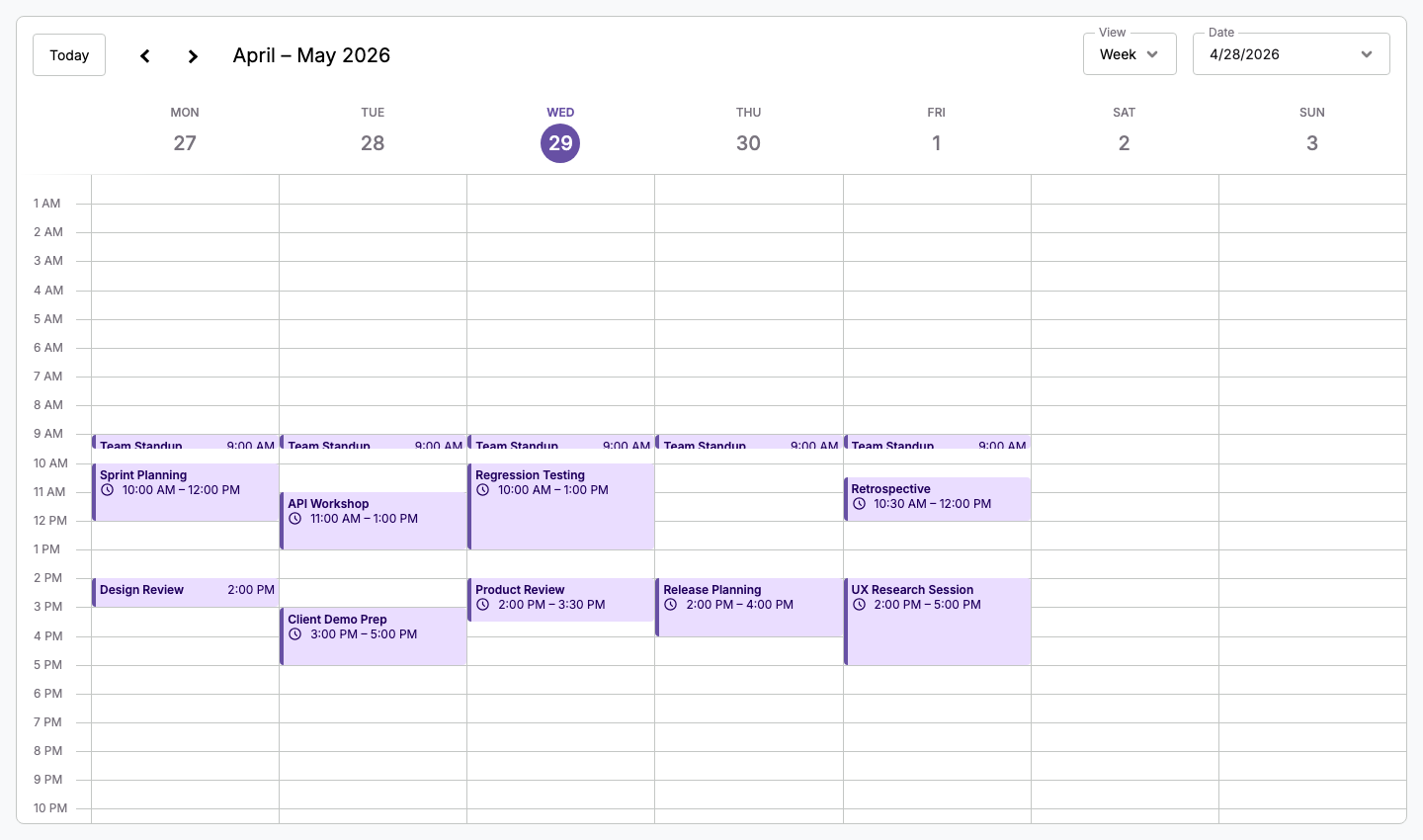
MIT license, tree-shakable bundle, and Svelte and Preact support
The MIT-licensed core carries no evaluation watermark, no per-developer fee, and no restriction on open-source use. The functional API (createCalendar(), createViewWeek()) is small, tree-shakable, and easier to reason about in isolation than a class-based alternative. The production bundle includes only the views imported.
Framework support spans React, Angular, Vue, Svelte, and Preact, all with first-party integrations.
Resource scheduling and drag-and-drop are premium add-ons, no undo/redo or export
The resource scheduler is not part of the MIT core. It is available as @sx-premium/resource-scheduler, a paid premium add-on. Most production scheduling applications that need resource scheduling alongside calendar views hit this gate early.
Drag-and-drop and resize are also Premium in current v4: they sit under @sx-premium/drag-and-drop and @sx-premium/resize. Treating them as free features is wrong for a new integration.
The free core has no built-in Excel export and no undo/redo. The current date API requires all dates to be Temporal objects. LLM training data still reflects plenty of string-based examples, so an AI agent generating code without current documentation is likely to produce stale event objects.
Schedule-X pricing: free MIT core, paid Premium add-ons
The MIT-licensed core is free with no per-developer fee, no watermark, and no evaluation restrictions. Schedule-X also ships an MIT-licensed @schedule-x/ical plugin for iCalendar sources, and localization is supported through @schedule-x/translations.
Premium add-ons (@sx-premium/resource-scheduler, @sx-premium/drag-and-drop, @sx-premium/resize) are paid. Pricing is not publicly listed; check schedule-x.dev for current rates.
Temporal API setup, Vite deduplication, and functional API patterns
TypeScript type definitions are included in the package. The functional API (createCalendar(), createViewWeek()) is easy to compose and test in isolation.
Two setup details matter for current v4:
- Import
temporal-polyfill/globalbefore creatingTemporaldates or rendering the calendar. - If Vite pulls multiple Preact copies into the module graph, add
resolve.dedupeandoptimizeDeps.includeforpreactto force one copy.
Framework wrappers cover React, Angular, Vue, Svelte, and Preact. Documentation is at schedule-x.dev and reflects the current API.
No AI tooling: Temporal API migration means stale LLM training data
Schedule-X has no MCP server and no Claude Code skill. Documentation is available at the project website, but there is no structured retrieval mechanism for AI agents.
The Temporal API migration compounds the AI tooling gap. An agent generating Schedule-X code from older examples is likely to pass plain date strings or invent view names such as week-view, both of which are wrong for current versions. Correcting this requires the agent to find and read the current migration and configuration docs independently.
Use Schedule-X when an MIT core is enough
Schedule-X is the right choice for open-source projects that need standard day, week, and month calendar views without resource scheduling or drag-and-drop editing. The MIT license removes the watermark and per-developer fee entirely. For production applications that need resource scheduling, drag-and-drop editing, Excel export, undo/redo, or reliable AI-assisted development, the gap between the free core and those requirements is wide enough that Bryntum Calendar is a more complete fit from the start.
Which is better: Bryntum Calendar or Schedule-X?
For most production calendar applications, Bryntum Calendar is the right choice. Resource scheduling, drag-and-drop editing, export, localization, and undo/redo are default features, not add-ons. The MCP server and Claude Code skill make it easier to support in teams using AI coding agents, and the end-user AI chat panel extends that value to non-technical users.
Bryntum Calendar is the better fit for production scheduling, while Schedule-X is a good fit for open-source projects that only require standard day, week, and month views without resource scheduling or drag-and-drop editing. Bryntum Calendar becomes the more practical choice once resource scheduling, drag-and-drop editing, export, or AI agent support move into the requirements.